PC requirements and settings
Quick answer
Minimum is a GTX 1050 Ti or RX 570 with 16 GB RAM at 1080p low, around 30 FPS; recommended is a GTX 1650 or RX 6600 for 1080p high at 60 FPS.
These are the published PC requirements for RetroSpace, straight from the Steam store page, plus the settings and quality-of-life items the demo's patch notes touched — useful because those notes tell you which options the developers expect players to need.
Minimum and recommended
| Minimum | Recommended | |
|---|---|---|
| OS | Windows 10 64-bit | Windows 10 or 11 64-bit |
| CPU | Intel Core i5-8400 or AMD Ryzen 5 2600 | Intel Core i5-11600K or AMD Ryzen 5 5600G |
| RAM | 16 GB | 16 GB |
| GPU | NVIDIA GeForce GTX 1050 Ti (4 GB) or AMD Radeon RX 570 | NVIDIA GeForce GTX 1650 or AMD Radeon RX 6600 |
| DirectX | Version 12 | Version 12 |
| Target | 1080p at Low or Balanced settings, around 30 FPS | 1080p at High settings, 60 FPS or higher |
| Storage | SSD recommended | SSD recommended |
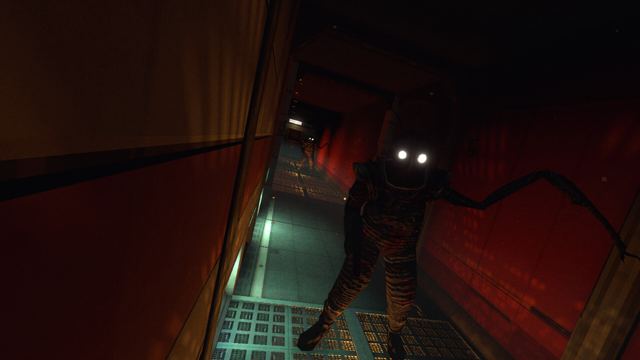
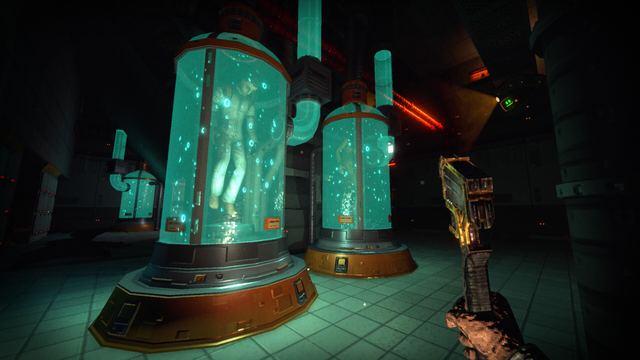
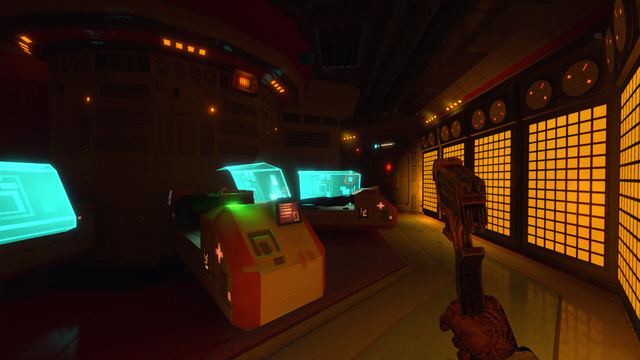
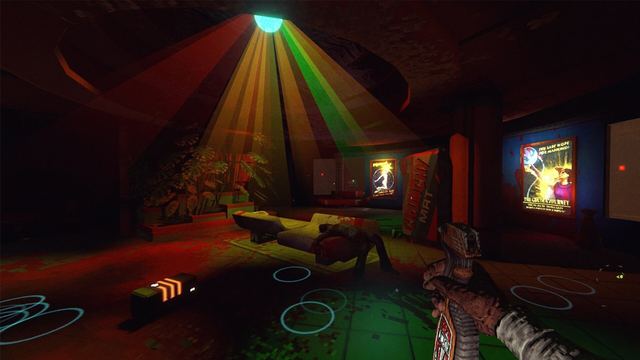
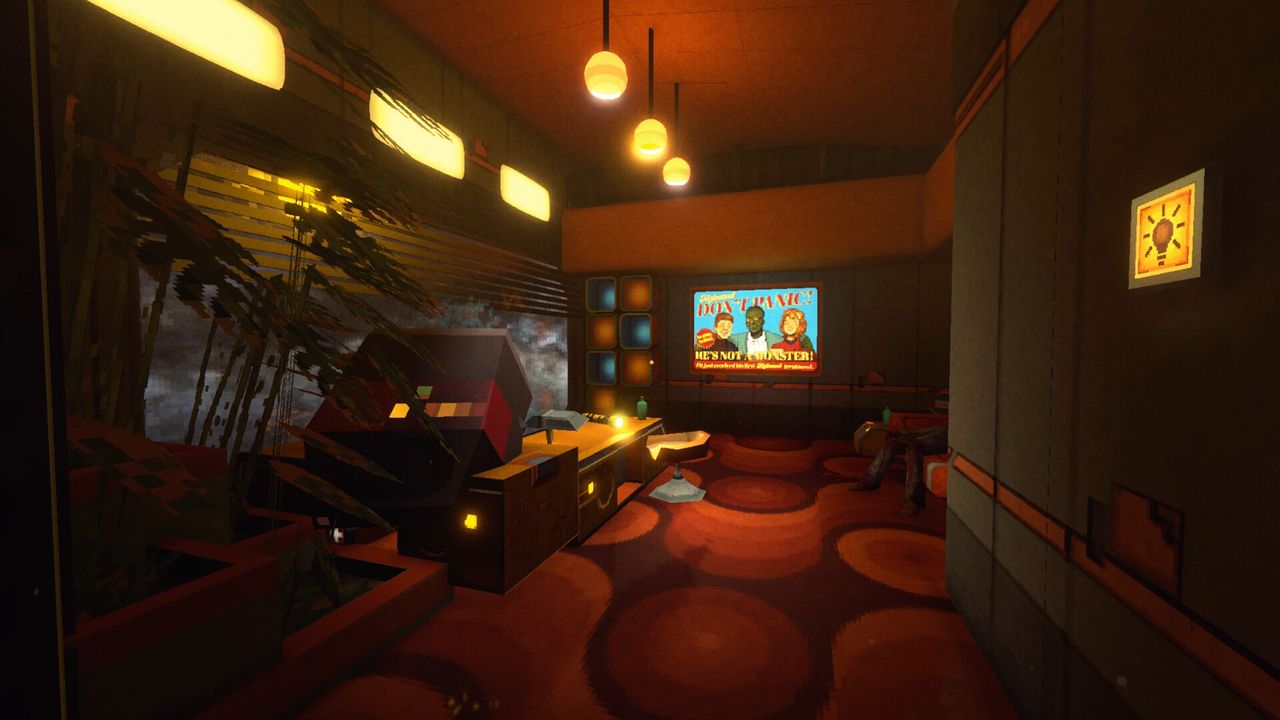
A 64-bit processor and operating system are required in both tiers. If your machine sits between the two lines, expect to tune settings rather than drop resolution first — the station's dark interiors and lighting are the expensive part.
Options the demo's patches touched
The demo's second major update named a set of interface and readability fixes that map to real settings:
- UI scaling and behaviour — a UI upgrade fixed elements described as floaty, i.e. UI positioning was a known pain point.
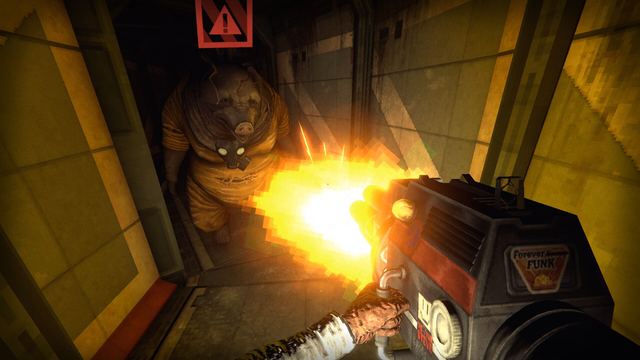
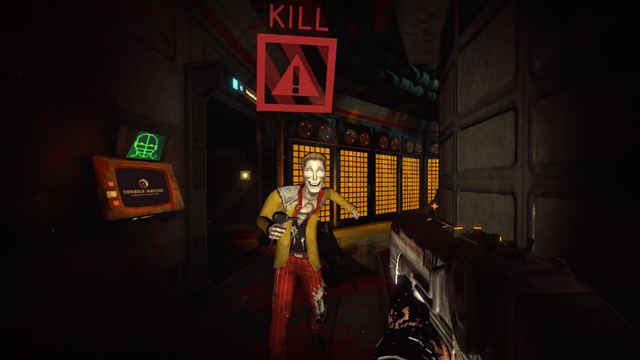
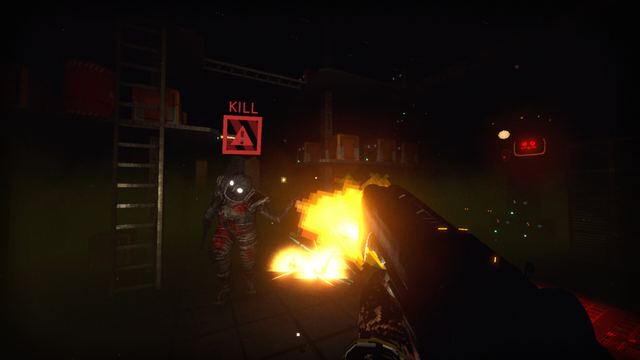
- Enemy state indicator — can be turned on or off from the menu at any time. Turn it off once you can read enemy behaviour yourself.
- Protected quick save — the current demo build protects the quick save function, so you can save before experimenting with a risky route or a Mutamod™.
- Audio balance — a pass specifically reduced "chaos and cacophony", so if a fight feels unreadable, checking audio balance settings is the first thing to try.
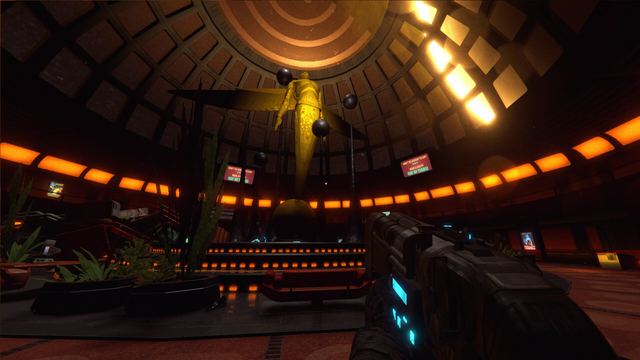
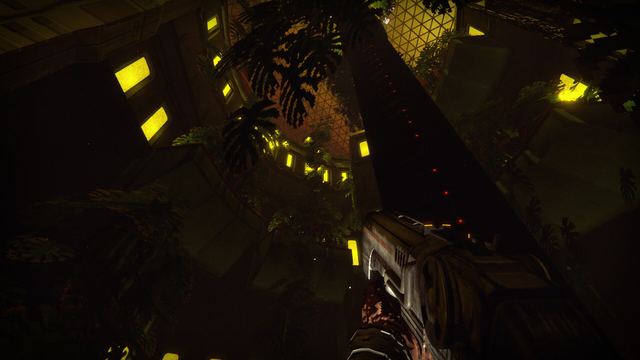
- Lighting — a "Hello darkness" update made the game less dark, meaning brightness and gamma are worth calibrating once rather than fighting level by level.
- Controller support — the store lists full controller support, including DualShock and DualSense pads. Save anytime and Steam Cloud are both listed.
Practical setup advice
- Calibrate brightness before you judge the horror lighting. The developers already tuned darkness once; your monitor may still disagree.
- Keep quick save on your muscle memory. Review your route, quick save, then commit.
- Leave the enemy state indicator on for new enemy types, and off once a fight is about sneaking rather than pattern recognition.
- Use a controller for movement, mouse for hacking if your setup allows it — the game supports both, and the store lists both mouse and keyboard and pad support.
Still unconfirmed
- Whether the launch build adds an in-game benchmark or preset scaling options.
- Steam Deck verification status.
- Console performance and quality modes.